
Switching from Trello to monday.com: A Practical Migration Guide
Learn how to switch from Trello to monday.com smoothly with practical tips on migration timelines, costs, and feature mapping.


Switching from Trello to monday.com often begins with a rush to export data, only to stall when the migration timeline is underestimated. Many project managers overlook that the typical migration for a 25-person team takes 6 to 8 weeks, including data export, parallel setup, import, integration rewrites, and a parallel run. The cost difference also matters: monday.com’s Basic plan charges $9 per user per month with annual billing, nearly double Trello Standard’s $5 per user per month, making budgeting critical.
Another common trap is missing Trello’s 30-60 day written notice requirement before contract non-renewal, which leads to unexpected auto-renewal charges. The built-in Trello importer in monday.com handles cards, checklists, and labels with specific mapping rules, but attachments and Power-Ups do not transfer. Understanding these operational details upfront is essential to avoid migration failures and keep the switch on schedule and budget.
Overview of switching from Trello to monday.com
- A 25-person team migration typically spans 6-8 weeks, including setup and integration rebuilds.
Settings, menu paths and limits here were checked against SaaS True Cost, AIToolPick, SpotSaaS (full list at the end) in November 2026.
Is monday.com similar to Trello?
Both Trello and monday.com organize work around boards and cards (or items) but differ sharply in scope and complexity. Trello centers on a straightforward Kanban setup with lists holding cards, making it ideal for small teams focused on simple task tracking. In contrast, monday.com offers multiple views beyond Kanban, including timeline, calendar, and dashboards, supporting broader project visualization and management needs.
For example, a Trello board with lists named "To Do," "In Progress," and "Done" typically matches a workflow stage. When migrating to monday.com, these lists map best to a Status column where each stage becomes a status value. Conversely, if Trello lists represent categories rather than stages, they convert more naturally into groups within monday.com. This distinction is crucial for preserving workflow logic after migration.
While Trello’s calendar feature is limited and basic, monday.com integrates calendar and timeline views that allow detailed schedule management and cross-project insights. This difference enables monday.com users to visualize deadlines and dependencies more effectively. Additionally, monday.com supports advanced workflows with built-in automations and CRM-like features, which Trello lacks without third-party add-ons.
In brief, Trello’s simplicity suits teams that want a clean, Kanban-only approach and minimal setup. monday.com appeals to those requiring a flexible, multi-view platform with automation capabilities and more complex project tracking. Understanding these differences helps set realistic expectations when planning a migration.
Is Trello or monday better?
Trello’s Standard plan costs $5 per user per month with annual billing, making it a cost-effective choice for small teams focused on simple Kanban boards. It suits teams that prioritize straightforward task tracking without the need for advanced project views or extensive automation.
monday.com’s Basic plan starts at $9 per user per month with annual billing, requiring a minimum purchase of 3 paid seats. This pricing structure makes it less suitable for very small teams or those with tight budgets. However, monday.com provides advanced features such as automations, integrations, timeline and calendar views, dashboards, and CRM capabilities starting at the Standard plan, making it a stronger fit for teams with complex workflows or scaling needs.
Another important consideration is reliance on Power-Ups. Trello users who depend heavily on specific Power-Ups without direct equivalents in monday.com may face manual rebuilds or feature gaps after migration. Teams must evaluate whether monday.com’s built-in automations and integrations cover their workflow requirements or if sticking with Trello is more practical.
For example, a three-person marketing team managing a content calendar with simple task assignments and checklists would benefit from Trello’s affordability and ease of use. Conversely, a larger project management office requiring Gantt charts, customizable dashboards, and integrated CRM should consider monday.com despite the higher cost and minimum seat requirements.
| Team Situation | Recommended Platform | Key Reason |
|---|---|---|
| Small team with basic Kanban needs | Trello | Lower per-user cost and simple interface |
| Need advanced project views and automations | monday.com | Supports Gantt charts, dashboards, and integrations |
| Heavy reliance on Trello Power-Ups without equivalents | Trello | Avoids manual rebuilds and feature loss |
| Budget constraints requiring free or low cost | Trello | More generous free plan and lower cost entry |
Teams planning a switch should weigh the trade-offs between monday.com’s richer feature set and the simpler, more economical Trello. Budget, team size, and workflow complexity drive the best choice.
- Evaluate current team size and growth plans
- List essential features including automations and views
- Compare costs considering seat minimums and billing cycles
How to work with Trello data for migration?
Trello exports each board’s data as a JSON file containing cards, lists, labels, due dates, checklists, descriptions, and card members. This export does not include attachments or data from Power-Ups, which require separate handling. The JSON format organizes cards under lists, with associated metadata such as labels and due dates clearly defined.
Before importing into monday.com, it is critical to understand how Trello data maps to monday.com features. Trello cards become items in monday.com boards. Checklists within cards turn into subitems, preserving task hierarchies. Labels from Trello can map to either status columns or tag columns depending on the intended workflow. Due dates translate directly to date columns, and card members correspond to people columns within monday.com.
For instance, a Trello card titled “Design Homepage” with a checklist of subtasks, two colored labels, a due date, and assigned members will be imported as a monday.com item named “Design Homepage.” The checklist items become subitems under it. The labels will populate either a status or tag column as configured, the due date will fill the date column, and the assigned members will appear in the people column. Attachments must be downloaded manually from Trello and then uploaded separately to monday.com, as they are not included in the JSON export.
Preparing Trello data requires exporting each board’s JSON file via Trello’s menu path: Board Menu > More > Print and Export > Export as JSON. After exporting, attachments must be collected manually to avoid loss. Understanding the JSON structure will help verify completeness before import. This preparation ensures the monday.com importer can correctly map and recreate Trello data within the new platform.
- Export each Trello board as a JSON file through the board menu.
- Manually download attachments and save them for re-upload to monday.com.
- Review JSON content to confirm cards, checklists, labels, due dates, and members are present before starting import.
How to import Trello boards and data into monday.com?
Start by accessing monday.com’s built-in Trello importer via the menu path: + Add → Import → Trello. Authorize the connection to the Trello account when prompted. Once connected, select the boards targeted for import. The importer automatically maps Trello cards to monday.com items, streamlining the initial data transfer.
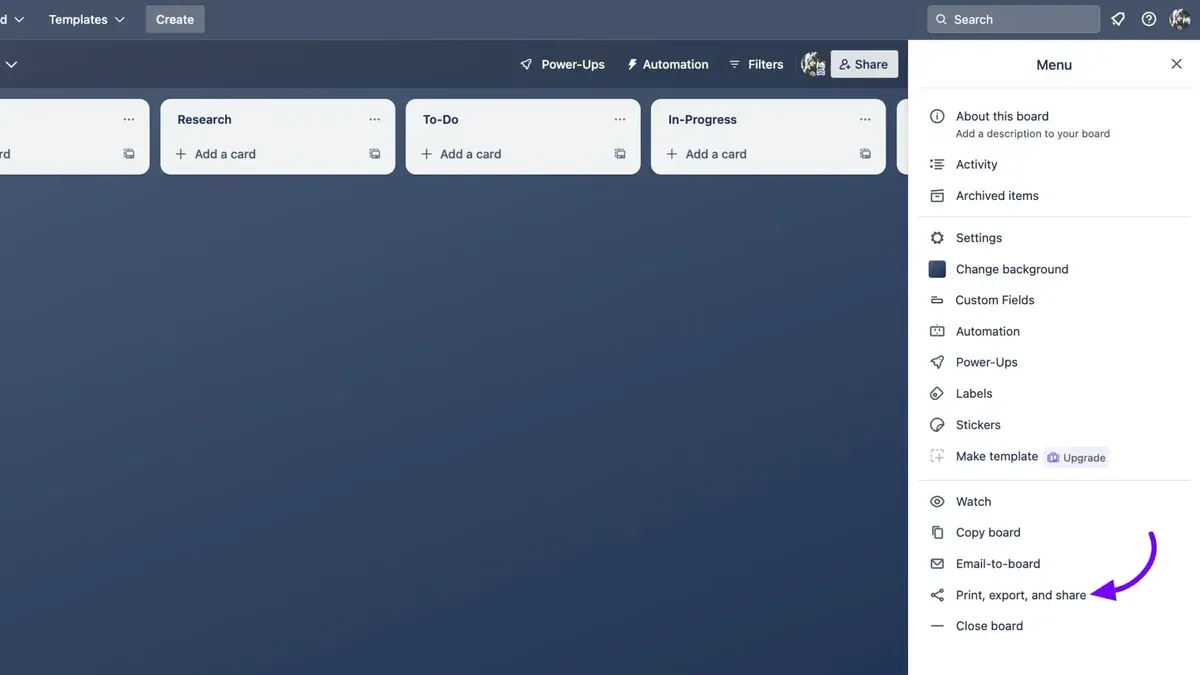
Before importing, set up the destination boards and columns in monday.com to reflect the Trello data structure. Use + Add → New Board and choose a template or start with a blank board. Create columns such as Item Name, Status, Person, Date, Priority, and Notes to ensure that Trello data has a corresponding place in monday.com. Proper setup avoids data misalignment and reduces post-import cleanup.
During import, Trello checklists convert into subitems in monday.com, preserving task hierarchies. Labels from Trello are mapped to status or tag columns, depending on the board’s column configuration. Some manual adjustments often remain necessary after import, particularly for custom labels or complex card details. Attachments and Power-Up data do not transfer via the importer and require separate handling.
For example, a Trello board with lists named "To Do," "In Progress," and "Done" should translate into monday.com groups or status columns named the same. Cards under “To Do” become items under the corresponding group or with a “To Do” status. Checklist tasks within cards appear as subitems linked to each main item.
- Use the + Add → Import → Trello path to connect and select boards for import.
- Create monday.com boards and configure columns to match Trello data before importing.
- Review and adjust imported subitems and label mappings manually post-import.
How to rebuild automations and integrations after migration?
Trello’s Butler automation rules do not transfer to monday.com and must be recreated manually. This involves using monday.com’s automation recipes, which offer a robust set of triggers and actions to replicate or improve upon existing workflows. Rebuilding these rules requires careful review of each Trello Butler rule to identify equivalent automation recipes. The process can take several days depending on complexity.
Native integrations and Power-Ups from Trello also do not migrate. Each integration must be rebuilt within monday.com using its native integration features or third-party connectors. For non-trivial integrations, expect a timeframe of two to four days per integration to properly set up, test, and validate functionality. This includes common integrations such as Slack notifications, calendar syncing, or time tracking tools.
To ease transition and reduce manual entry during migration, monday.com provides an integration sync feature that automatically syncs new Trello cards as tasks in monday.com boards. This allows teams to continue working in Trello while gradually moving workflows to monday.com, minimizing disruption. For example, new cards created on Trello can instantly appear as monday.com items, ensuring no task creation is missed during cutover.
Rebuilding automations and integrations is a critical step that requires allocation of sufficient time and resources to avoid workflow breakdowns. It is advisable to document all existing Butler rules and integrations before migration and plan the rebuild in phases aligned with the migration timeline.
- Document all Trello Butler automation rules to be recreated.
- Identify and prioritize integrations requiring rebuild in monday.com.
- Set up monday.com integration sync with Trello to automate task syncing during transition.
What migration timeline and parallel run strategy should be followed?
A typical migration for a team of 25 takes between six and eight weeks from start to finish. The process begins with one to three days dedicated to exporting Trello data, ensuring all boards, cards, checklists, and labels are properly prepared for transition. Following export, one to two weeks are allocated to setting up monday.com in parallel, configuring boards and columns to mirror existing workflows before any data import occurs.
The actual bulk import of Trello data into monday.com should be completed in a single day using the built-in importer. After the import, rewriting integrations and automations takes an additional two to four days per integration, as Trello’s automations do not transfer and must be rebuilt from scratch in monday.com. This step is critical and cannot be rushed without risking functionality loss.
To prevent data loss and maintain operational continuity, running Trello and monday.com simultaneously for one to two weeks during cutover is essential. This parallel run period allows teams to verify data integrity in monday.com while still having Trello as a fallback. The overlap also helps catch any missed data or workflow discrepancies before fully committing to the new platform.
Skipping or compressing any step in this order risks failures: for example, importing data before parallel setup leads to misaligned boards and missing columns, while rushing integration rewrites causes broken workflows. Likewise, ending the parallel run too early exposes the team to data loss and unresolved issues without a fallback.
Costs during migration include licensing fees for both platforms during overlap, plus 2-3 days of administrative time managing the process and 1-2 days of work per integration rewrite. Planning for these resources upfront is necessary to avoid surprises and ensure a smooth transition.
For a concrete example, imagine a project team exporting data on Monday, then spending two weeks setting up monday.com boards and permissions. On a Friday, they import the data, spend the following week rebuilding integrations, and run both platforms side-by-side for ten days. This approach avoids disruption and allows immediate rollback if issues arise.
What common migration pitfalls to avoid when switching from Trello to monday.com?
Trying to cut costs by disabling Trello access before monday.com is fully operational leads to longer recovery times and potential data loss. If issues arise during migration without Trello as a fallback, teams face confusion and delays that could have been avoided. Maintaining both platforms side by side for 6-8 weeks ensures a smooth transition and data integrity.
Failing to announce the cutover date to all users causes synchronization problems. When team members are unaware of the switch, they may continue entering data into Trello, creating conflicting updates and lost information. Clear communication about the migration timeline and access changes prevents inconsistent task tracking and duplicated efforts.
Not cancelling the Trello subscription before its automatic renewal results in unexpected charges. Trello contracts require 30-60 days written notice to avoid auto-renewal fees. Overlooking this administrative step means paying for Trello licenses no longer in use, increasing migration costs unnecessarily.
Attempting to replicate Trello workflows exactly within monday.com limits the advantages of the new platform. monday.com offers advanced automation, multiple views, and flexible column types that Trello does not. Clinging to old patterns wastes these capabilities and leads to suboptimal workflows rather than improvements.
For example, a project manager who disables Trello access immediately after starting import may find missing cards or incomplete data. Recovery then requires re-imports or manual fixes, delaying project progress. Similarly, teams that do not inform all members of the cutover date often suffer from parallel updates in both tools, forcing manual reconciliation. Lastly, failing to notify Trello of contract non-renewal causes billing surprises that inflate the migration budget.
How to map Trello workflow elements to monday.com features effectively?
Mapping Trello elements to monday.com requires understanding the role each Trello list plays. When lists represent workflow stages like "To Do," "In Progress," and "Done," they translate best into monday.com Status columns. This allows automation and reporting features to function properly, tracking each item’s progress through defined states. Conversely, if Trello lists categorize tasks by client, project, or category, mapping them to monday.com Groups preserves that organizational structure as separate sections within a board.
Trello cards become monday.com items, maintaining task-level granularity. Checklists within cards map directly to subitems, preserving task breakdown and dependencies without flattening the hierarchy. This ensures detail remains accessible without cluttering the main board.
Labels require careful mapping depending on their purpose. If labels reflect status or priority, they should become Status columns in monday.com, enabling coloring and filtering aligned with workflow stages. If labels classify items without indicating state—such as tags or keywords—they map to Tag columns instead. This distinction supports clearer filtering and automations on monday.com.
For example, a marketing team using Trello with lists "Backlog," "Design," "Review," and "Approved" should map those lists to a Status column with matching labels in monday.com. Checklists on Trello cards breaking down tasks like "Create copy," "Design graphics," and "Publish" become subitems under each main item. Labels like "Urgent" or "Low Priority" translate into an additional Status or Tag column depending on their intended use. This approach avoids forcing every Trello element into groups, preventing loss of automation benefits and reporting clarity.
Accurate mapping streamlines migration and sets up monday.com workflows for automation and reporting. Mapping lists to Status columns or Groups based on their function is the foundational decision. Cards, checklists, and labels follow straightforward translations preserving task detail and classification.
What to do after migration: training, archiving, and maintenance?
Effective team onboarding is essential once the migration to monday.com completes. Allow at least 30 minutes of self-paced training using monday.com’s free video courses before cutover to build familiarity with the new platform. Skipping this step risks slowing team adoption and causing errors in daily operations.
After running both Trello and monday.com in parallel and confirming data integrity, archive the Trello boards. Archiving prevents confusion over which system to use and stops accidental edits on outdated data. For example, a project manager who fails to archive Trello boards may face duplicated task updates or missed deadlines from team members working in the wrong tool.
Maintaining workflows means regularly reviewing and fine-tuning automations and integrations rebuilt in monday.com. These workflows evolve as team needs change, so periodic checks ensure they remain efficient and error-free. Neglecting this can cause workflow breakdowns, missed notifications, or stalled task progress.
- Complete at least 30 minutes of self-paced monday.com training before cutover
Frequently asked questions
Is trello down today?
This article does not track real-time service availability.
Does trello have a calendar?
This feature requires activation per board and is available on free and paid plans, although some advanced calendar functions may require a paid plan.
What to do after migration: training, archiving, and maintenance?
Post-migration activities ensure the new setup operates smoothly and the transition is complete. Training sessions should focus on monday.com-specific features, such as how to use status columns, subitems, and automations, which differ from Trello's interface. Archiving Trello boards follows notification to avoid auto-renewal charges, respecting the 30-60 day written notice period. Maintenance includes regular audits of workflows and integrations rebuilt on monday.com to catch gaps early and optimize board performance.
Choosing between Trello and monday.com
Groups requiring robust customization, complex workflows, and integration capacity favor monday.com, accepting its 3-seat minimum and the upfront migration steps. If automation depth and status tracking are priorities, monday.com provides significant advantages despite a steeper setup. For cost-sensitive teams with minimal user counts, Trello’s pricing and cancellation flexibility may be preferable.
Pages this guide relies on
- How to migrate from Trello to Monday.com: pricing diff, switching cost, and 30-day plan — SaaS True Cost
- How to Switch from Trello to Monday.com (Step-by-Step Guide 2026) | AIToolPick Blog — AIToolPick
- How to Move from Trello to monday.com (Guide) — SpotSaaS
- Trello and monday.com Integration | monday.com — monday.com
See also: Switching from Trello to Miro: A Clear Migration and Setup Guide · Move from Microsoft Planner to monday.com Checklist with Confidence · Moving from Basecamp to monday.com Checklist for Effective Transition



