Moving from Asana to Slack Checklist: Streamline Your Workflow Shift
Follow this moving from Asana to Slack checklist to integrate tools, reorganize tasks, and streamline your workflow transition efficiently.

How to integrate Asana with Slack for a smoother transition
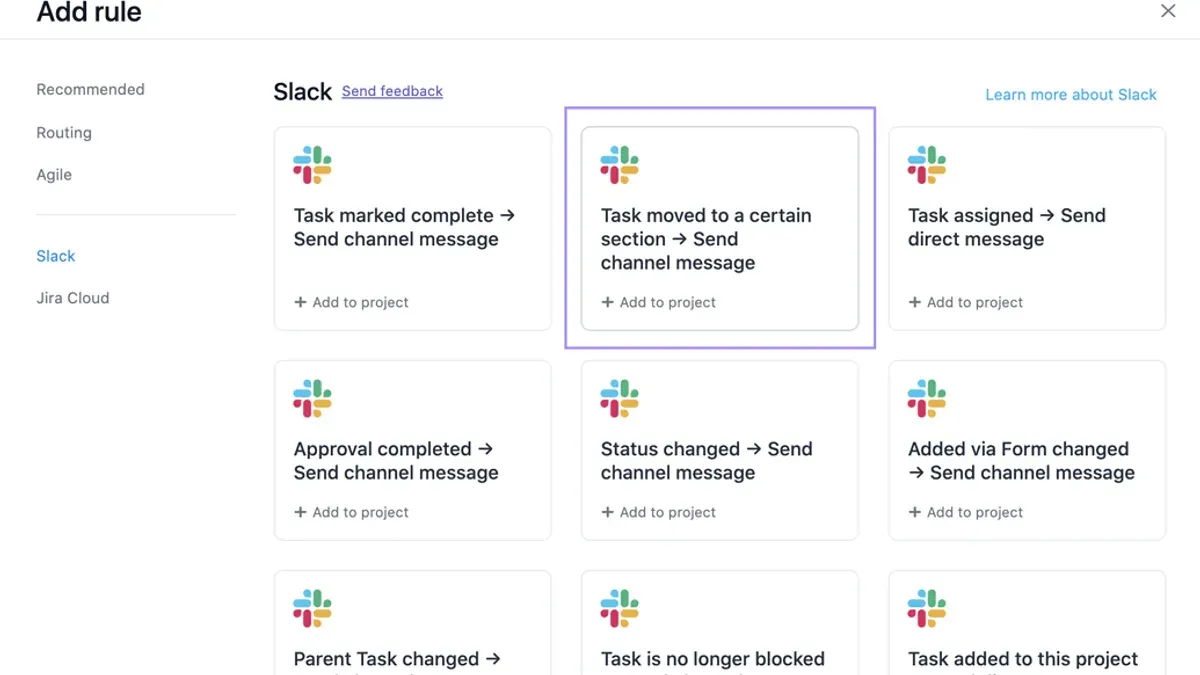
Begin by installing the Asana app from the Slack App Directory into your workspace. Ensure you authorize it with the correct permissions before linking projects; authorizing after linking leads to command failures. Once authorized, connect specific Asana projects to relevant Slack channels to centralize task updates and discussions.
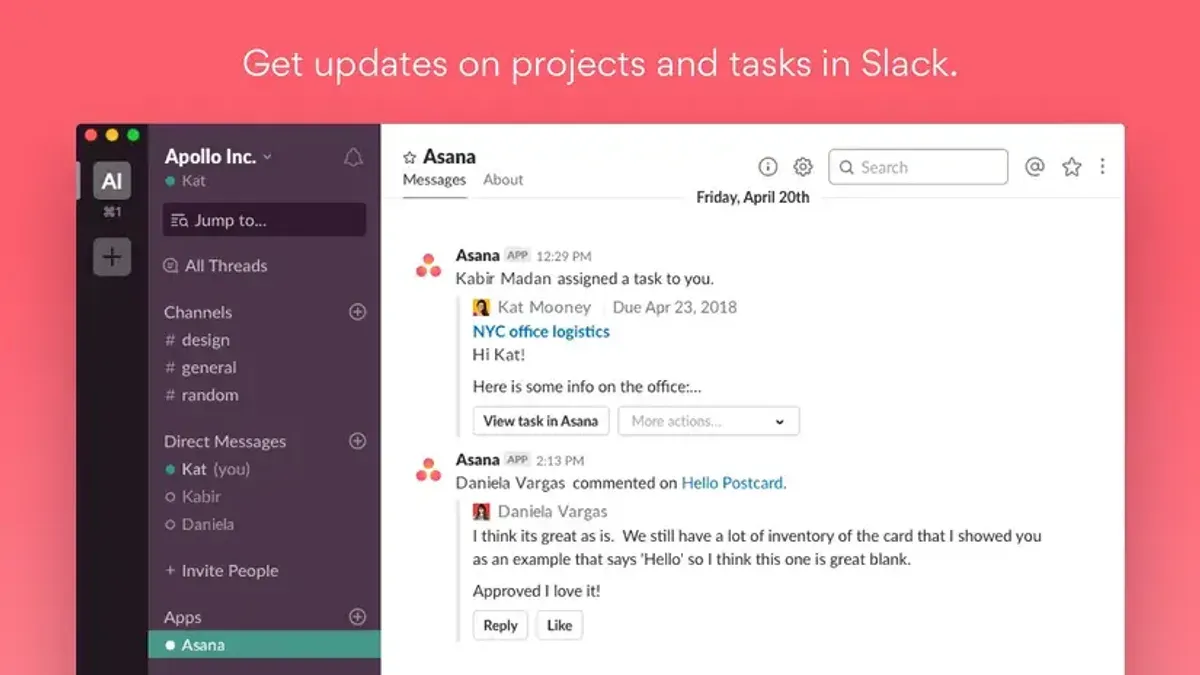
Slack’s integration allows you to manage Asana tasks directly via slash commands like /asana create, which creates a task without leaving Slack. You can assign tasks, set due dates, and receive notifications within Slack channels or direct messages. However, notifications are limited to task comments, completions, and assignments—other Asana updates might not sync immediately.
For example, linking your marketing project to a #marketing Slack channel means any task created or updated in Asana triggers a notification there, streamlining communication. But bear in mind, Slack doesn’t replicate Asana’s project or section structure; it focuses on task-level actions and alerts.
How to move a task in Asana to prepare for Slack-based workflow
Before shifting your workflow from Asana to Slack, reorganizing tasks within Asana is essential to preserve clarity and ownership. Use Asana’s Move to another project option, found by selecting a task’s dropdown menu and choosing the destination project. This step consolidates tasks into logical groups that align with your Slack channels since Slack lacks project or section organization.
Exporting task lists or project data into Slack-friendly formats helps maintain visibility. Asana allows exporting projects as CSV files via Project Actions > Export/Print > CSV. You can then import or share this file within Slack channels or convert key tasks into reminders and messages.
Break down detailed Asana checklists into individual Slack actionable items by converting subtasks or checklist points into separate Slack reminders or messages. Since Slack does not support nested task structures, flattening dependencies into clear, standalone items avoids confusion.
Task dependencies and section divisions in Asana do not transfer directly to Slack. You must manually note dependencies either in task messages or Slack statuses to maintain workflow continuity.
For example, if you have a task “Prepare marketing plan” in Asana with subtasks for research, drafting, and review, move the main task to the appropriate project, export the list as CSV, then create Slack reminders or messages for each subtask in the related channel. Use Slack status updates to indicate progress on dependencies.
- Use Asana’s “Move to another project” to reorganize tasks by future Slack channel
- Export project data as CSV for sharing or importing into Slack
- Convert Asana subtasks and checklists into individual Slack reminders or messages
How to use Asana in Slack to maintain productivity during transition
During your migration, you can continue managing Asana tasks without leaving Slack by using the integrated slash commands and notifications. For example, typing /asana list in any channel displays your current tasks, allowing you to review priorities quickly. When a task status changes, Slack sends automatic updates to the relevant channel or direct message, keeping everyone aligned.
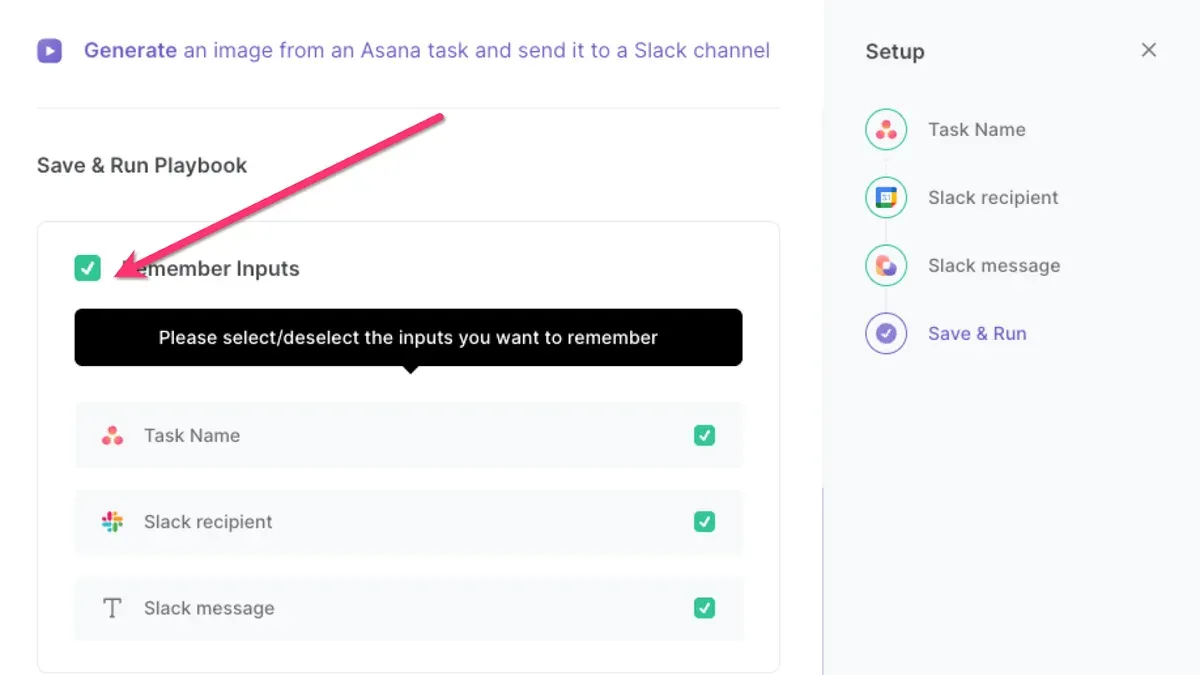
You can also comment on Asana tasks directly from Slack by replying to these notifications or using /asana comment [task ID] [message]. This keeps conversations centralized and reduces the need to switch apps. Additionally, setting reminders in Slack linked to Asana tasks helps you track deadlines; use /remind me about [task name] at [time] to get timely alerts.
Strategically updating your Slack status to reflect task progress adds immediate visibility for your team. For instance, when you start working on a high-priority task, update your status to “Focused on [task name]” so colleagues know your availability. Combined with Asana notifications, this approach maintains clarity and momentum during the transition.
How to stay active on Slack and keep your Slack status active
To avoid being shown as away during focused work, you can adjust your status manually or use integrations that signal your availability.
Use Slack’s status feature strategically by setting custom statuses like “Deep focus – will reply after 2 PM” or “In a meeting until 3 PM.” These communicate your current work mode clearly and prevent misinterpretation of inactivity. You can update your status via the profile menu or with slash commands such as /status.
Integrate Slack with your calendar and task reminders to automate status changes. For example, connecting Google Calendar can let Slack display when you’re in events, automatically setting your status to “In a meeting.” Similarly, scheduling reminders for tasks synced from Asana helps keep your availability transparent.
A green dot means active, a hollow circle means away, and a crescent moon indicates Do Not Disturb mode. Setting Do Not Disturb during deep work pauses notifications without changing your active status.
Imagine you’re about to dive into a two-hour report. Set your status to “Focus time until 4 PM,” enable Do Not Disturb, and sync your calendar. This signals to your team that you’re present but not immediately reachable, maintaining clarity without showing you as inactive.
- Set a clear custom status reflecting your availability or focus mode
- Sync Slack with your calendar to automate status updates
- Use Do Not Disturb mode during concentrated work periods
What to check after moving tasks from Asana to Slack
Once you have shifted your tasks from Asana to Slack, start by confirming that every crucial task has an associated Slack reminder, message, or thread. Slack’s task handling relies on communication channels rather than project structures, so missing reminders can cause overlooked responsibilities.
Next, verify that your team understands how to assign tasks and communicate under the new workflow. Since Slack lacks Asana’s project and section organization, clear instructions on using slash commands like /asana create and updating statuses within Slack channels are essential to maintaining clarity.
Check for any tasks or project components that didn’t transfer properly. These gaps often include subtasks or attachments that require manual follow-up. Establish a review cadence—such as a daily check during the first week and a weekly review thereafter—to catch missed items or workflow breakdowns early.
For example, if a recurring task was set in Asana but isn’t showing as a Slack reminder, it needs recreating to prevent disruption. Without this step, your team risks missing deadlines or losing visibility on priorities.
Who should consider alternatives instead of moving from Asana to Slack
If your team depends heavily on structured project management with detailed timelines, task dependencies, and milestone tracking, Slack’s communication-centered platform may fall short. Asana excels in managing complex projects with features like Gantt charts, custom fields, and workload views that Slack does not natively provide. For example, a product development team coordinating multiple phases and interdependent tasks will find Asana’s visual task organization indispensable.
Slack emphasizes messaging and real-time collaboration rather than task tracking. Its lack of direct project or section organization means it cannot replace Asana’s project hierarchy. Teams needing robust task dependencies and automated workflows might consider maintaining Asana alongside Slack or adopting hybrid workflows that integrate both tools effectively.
Alternatives like Trello offer visual task boards with card-based management closer to Asana’s project orientation but with simpler interfaces. Specialized task managers may also better suit industries requiring strict compliance or resource allocation. The table below compares key features relevant to your needs:
| Feature | Slack | Asana | Trello |
|---|---|---|---|
| Primary Focus | Communication & Collaboration | Project & Task Management | Visual Task Boards |
| Task Dependencies | No | Yes | Limited (via Power-Ups) |
| Project Organization | No direct support | Projects, Sections, Timelines | Boards, Lists, Cards |
| Integration with Slack | N/A | Built-in via app & slash commands | Available via Power-Ups |
| Status Updates | Custom Slack Status | Task Progress | Card Labels & Comments |
Moving entirely to Slack could disrupt their process due to the lack of project views and dependency tracking. Instead, integrating Asana with Slack or using Trello for simpler boards may align better with their operational needs.
- Assess if your projects require task dependencies and timeline views
- Evaluate if Slack’s communication tools meet your task management needs
- Explore hybrid approaches or alternative tools like Trello if project complexity is high
Key Steps for a Successful Move from Asana to Slack
Scope and Alternatives to Consider
If your team requires comprehensive project organization with task hierarchies and bulk migration capabilities, you should explore alternatives that better fit structured project management needs.